Your venue's listing on familyaction.com, and everything you can do with it. US edition, September 2026.
Why claim your listing
Claim your listing
Your first sign-in: five things to do
Screen by screen
What it costs: nothing
My venue is not listed yet
Questions
Contact us
1. Why claim your listing
Family Action lists family-friendly venues across the United States: indoor play
centers, trampoline parks, zoos, museums, pools, playgrounds and more. We
continually discover and add venues, so yours may already be on
familyaction.com before you arrive.
Claiming your listing costs nothing, and neither does any
tool that comes with it. You control what families see: your photos, opening hours,
pricing, party details, booking links and social media. You receive
enquiries from families, see how families find and use your listing,
understand your local market and your competitors, read what families say
about you, and make your own marketing in the Marketing Studio.
There's no charge for any of this. The one thing we charge for is optional: promoting your venue to
Family Action's own audience, when you ask us to (section 5).
Where you sign in. Family Action for Business is the one
portal for every country we operate in. US venues sign in at
business.familyaction.com, which takes you to the
portal with your country already chosen.
2. Claim your listing
Claiming is not submitting. Submitting tells us a venue
exists; claiming tells us you run it and gives you access to manage it.
If your venue is already on the site, you do not submit it again; you
claim its listing. Not on the site at all? See section 6.
1Find your business
Type your venue's name into the finder on familyaction.com/for-business, or open your venue's page on familyaction.com; the address looks like familyaction.com/activity/your-venue-name.
2Click "Claim this listing"
Fill in the short form: your name, your role at the venue, a contact email and a phone number we can reach you on.
3We check and approve
We usually review requests within one business day. If your email address
matches your venue's website, that is normally enough. If it does not
(a Gmail address, or a venue without a website), we look at the details
you gave and anything public that ties you to the venue, and approve on
judgement; we may email or call. If we cannot confirm ownership we
decline, and you can ask again with a verifiable address or reply
with evidence.
4Sign in from the email
Once approved you receive an email from hello@familyaction.com
with a sign-in link. It works once and for seven days, and there is no
password to set: the link signs you in. If it has expired, enter your
email address on the sign-in page and we email you a six-digit code.
Not in your inbox? Check Junk or Spam. Our emails come from
hello@familyaction.com, and Outlook and Hotmail in particular put a
sender you have not emailed before in Junk the first time. Mark it
Not junk or add the address to your safe senders, and every
email after that reaches your inbox.
5Sign in
From then on, sign in any time at business.familyaction.com. You land on Home, which is your listing.
3. Your first sign-in: five things to do
Everything below is on Home, where your listing is laid
out one tab per part. Each tab has its own Save changes
button; your listing updates as soon as you save.
Check your name, phone and website on the Venue details tab, and write a description if there is not one.
Add your opening hours on the Hours tab, day by day, including the days you are closed. A day with a break takes a second time.
Add your prices on the Pricing tab: a one-line summary and up to four price lines (for example Child, Adult, Family).
Upload your own photos on the Photos tab: up to five, landscape, up to 10 MB each. The first one is your listing's thumbnail. Photos we found on Google may already be there; add your own alongside them (section 7 explains why it matters).
Add a booking link on the Bookings and links tab if families can book or buy tickets on your website. Your listing gets a Book now button.
Then click View live listing at the top of Home and look
at your page as a family would. If you host birthday
parties, the Parties and groups tab is the next stop.
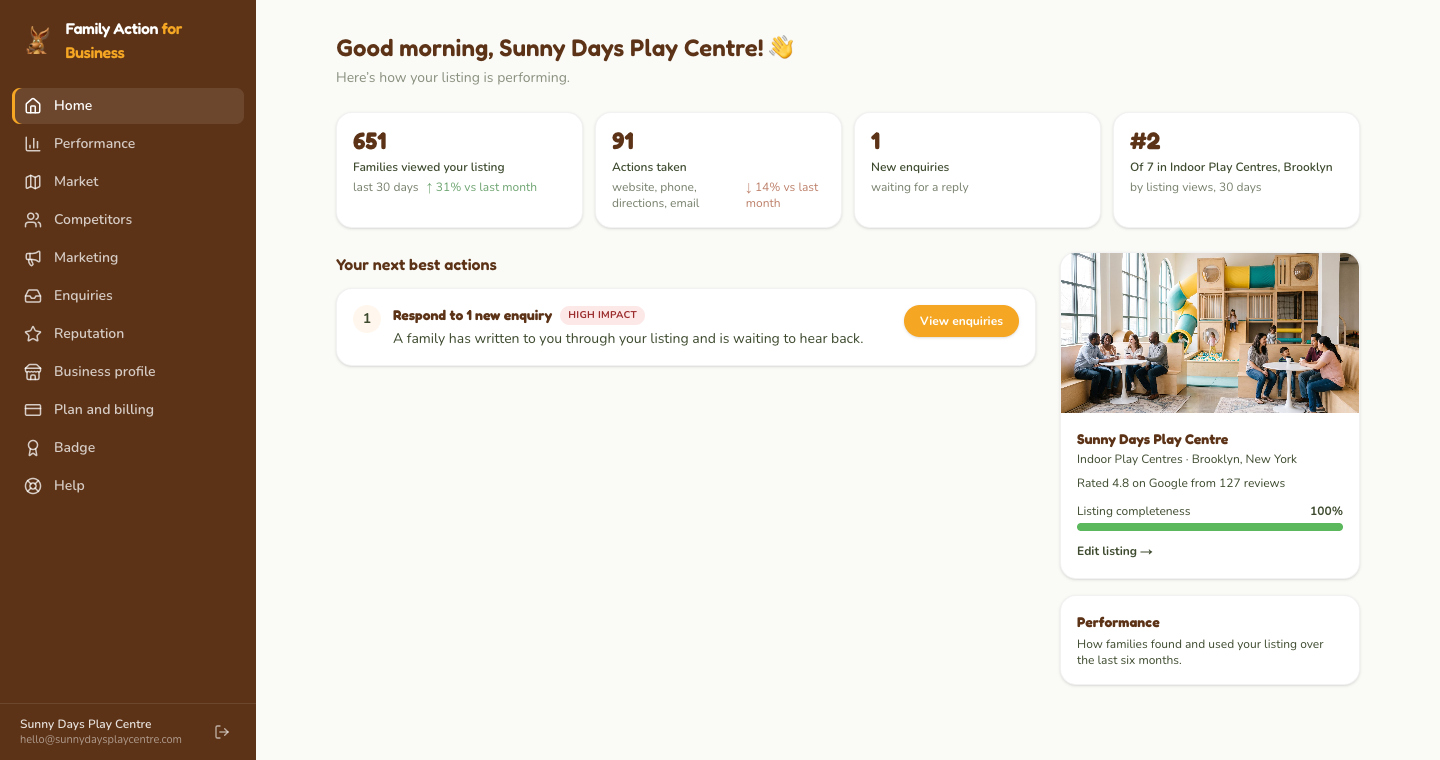
Home: the Overview shows what is complete and your next best actions; each tile opens the right tab.
4. Screen by screen
Every screenshot below is of a demonstration venue, Sunny Days Play
Centre, in US; your screens look the same with your own listing
in them. The portal works on a phone as well as a computer.
Home
Home is your listing, one tab per part, and each tab saves on its own.
The Overview tab shows how complete your listing is and suggests
what to do next, based on what is missing and on recent activity: an
enquiry waiting for a reply, a school holiday coming up, photos or hours
not yet added. Once your listing has enough traffic to measure, the Overview also shows the last 30 days at a glance.
Tab
What you can change
Photos
Up to five photos; the first is your thumbnail. Photos that came from Google are marked.
Venue details
Description, age range, phone, website.
Pricing
A one-line price summary and up to four price lines.
Amenities
Cafe, parking, toddler friendly, indoor or outdoor, change rooms, stroller access, free entry, wheelchair access, good for children. Each is Yes, No or Not set.
Hours
Opening hours per day: one or more times, open 24 hours, or closed.
Parties and groups
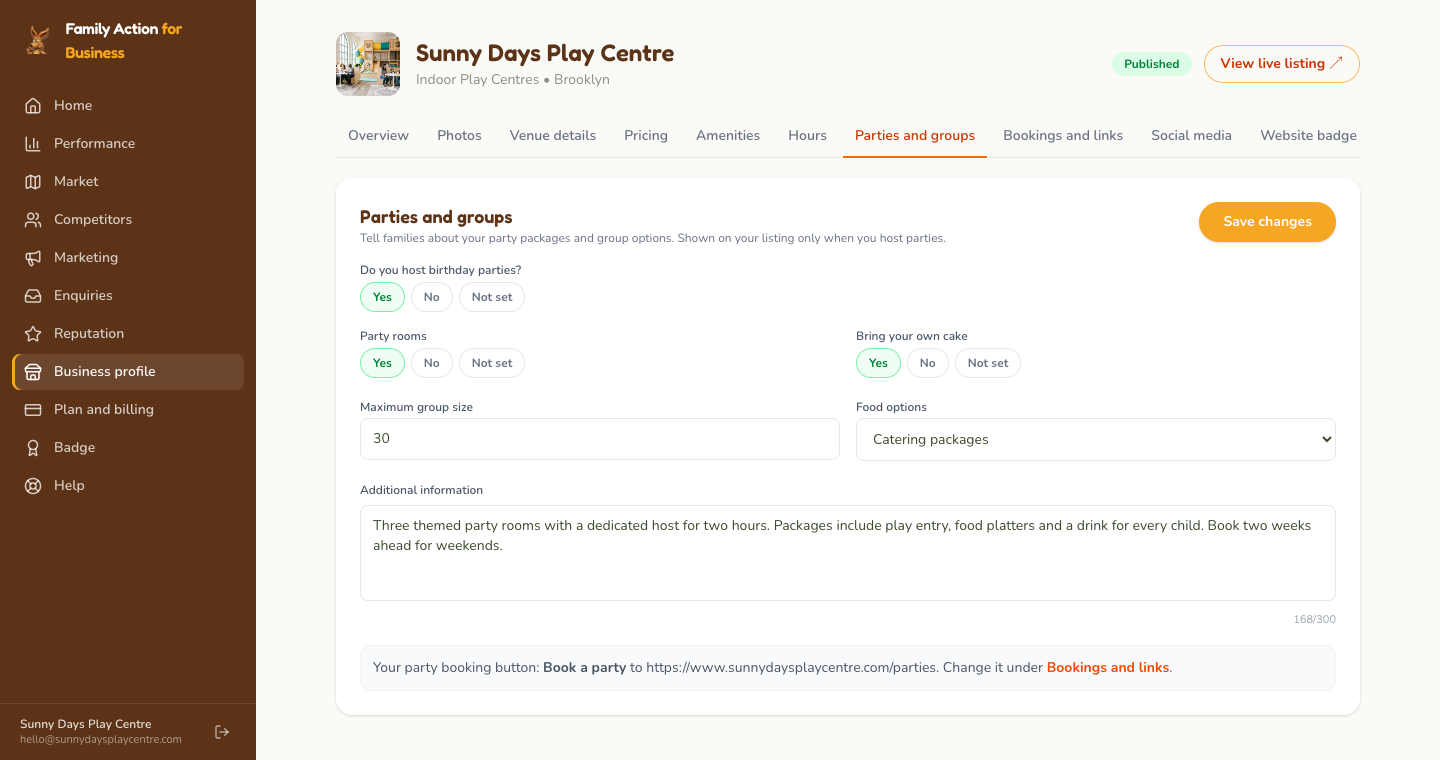
Whether you host birthday parties, and if so party rooms, maximum group size, bring-your-own cake, food options, and anything else families should know.
Bookings and links
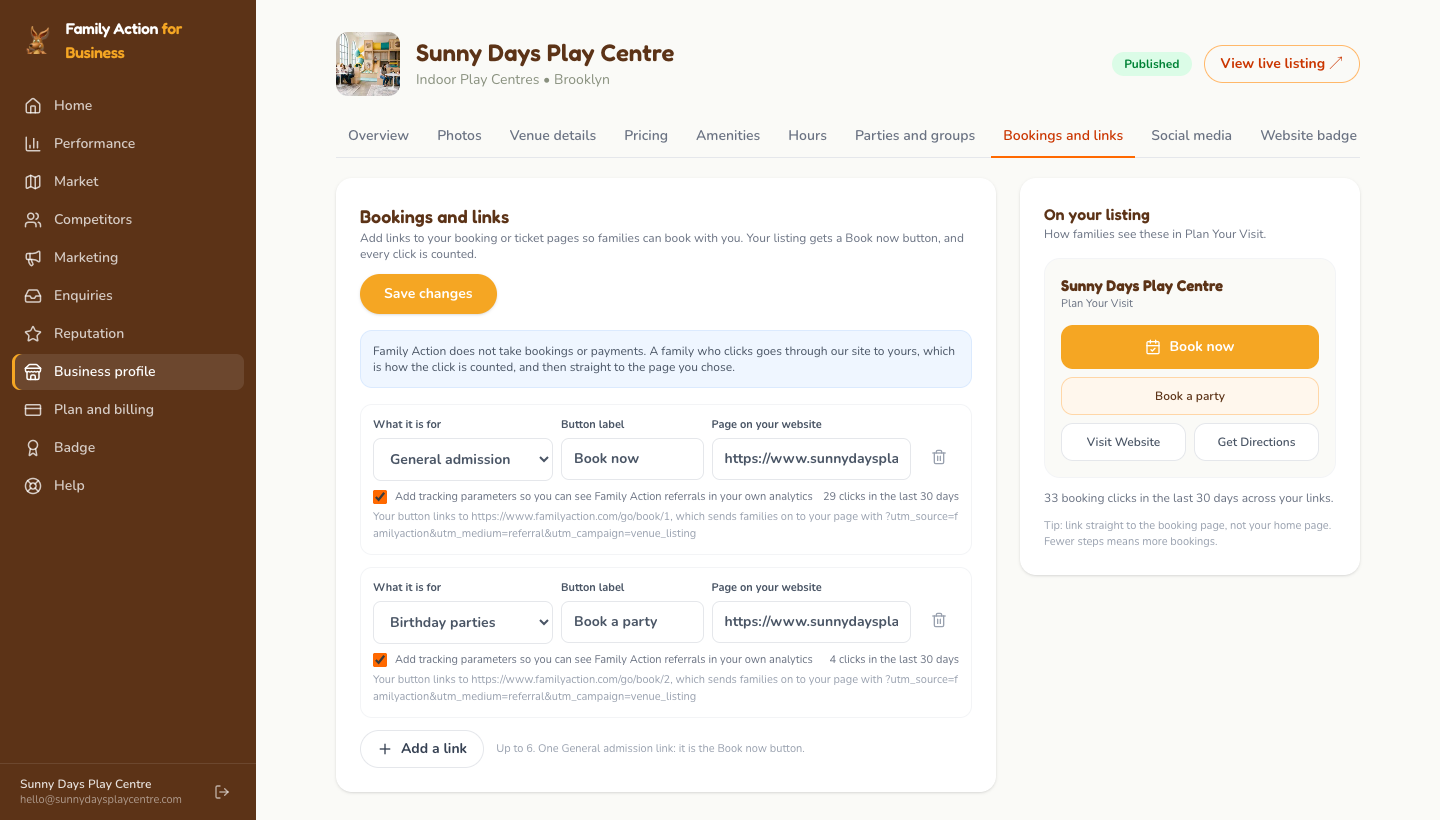
Up to six links to your booking or ticket pages. One "General admission" link becomes the Book now button on your listing.
Social media
Facebook, Instagram, TikTok, YouTube, LinkedIn.
Website badge
Code to paste into your own website for a "Featured on Family Action" badge that links to your listing. The same badge is under Badge in the menu.
Bookings and links: choose what the link is for, type the button label, paste the page address, then Save changes.
How booking links work. A family who clicks your Book now
button passes through our site on the way to yours, which is how the click
is recorded, and lands on the page you chose. Family Action does not take
bookings or payments. You see clicks per link on this tab and in your Performance steps.
Leave "Add tracking parameters" ticked and your own website analytics
will show visits from Family Action.
Parties and groups: answer Yes to parties, then fill in what families ask about.
Performance
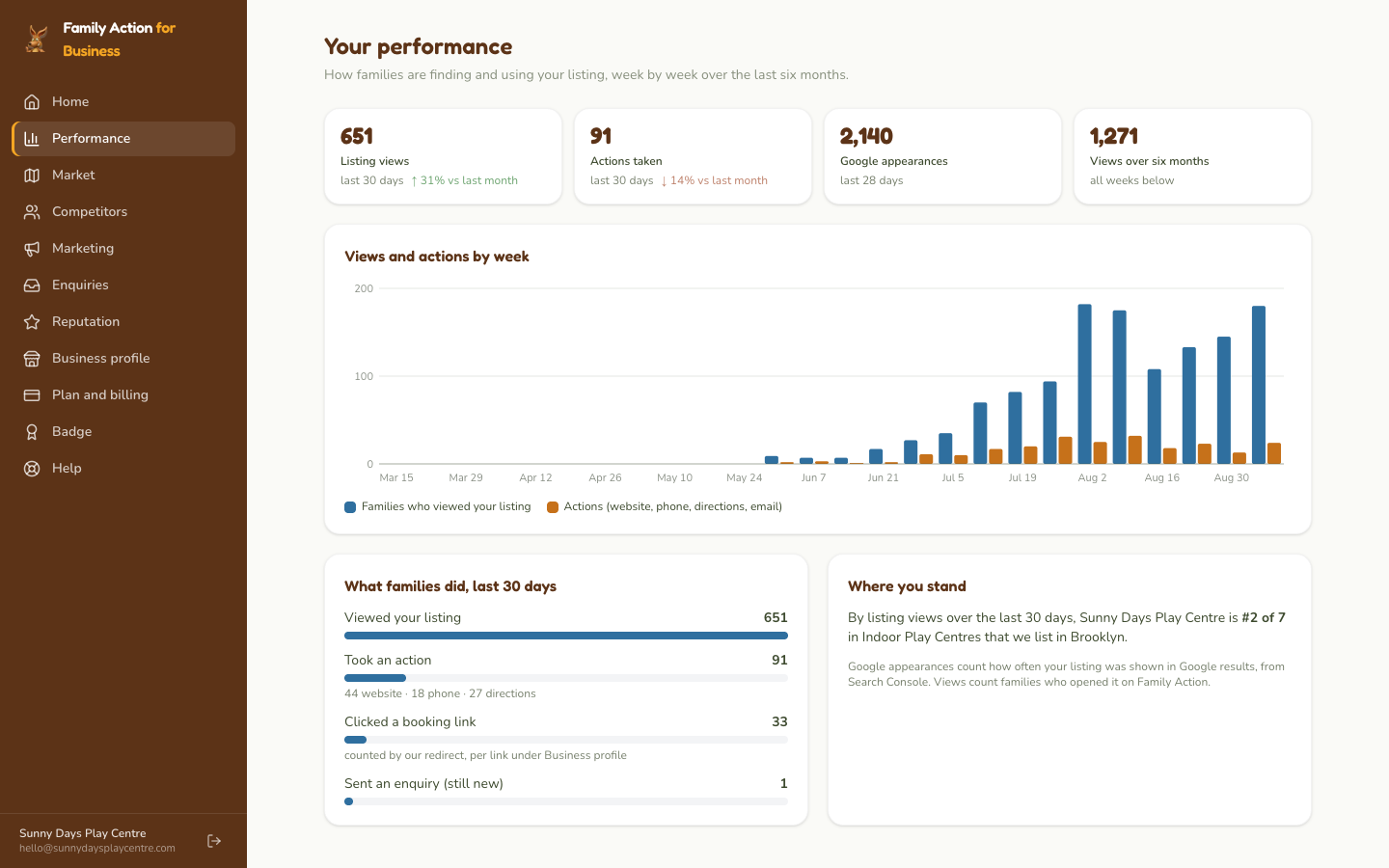
Views and actions week by week over the last six months, and the last 30
days in steps: how many families viewed your listing, how many took an
action (visited your website, called, asked for directions), how many
clicked a booking link, and how many sent an enquiry. It also shows where
you stand by views among the same kind of venue in your suburb. Performance
appears in your menu once a listing of yours has enough traffic to
measure; until then Home shows your listing without numbers, because we
do not draw a trend through numbers too small to mean anything.
Performance: views and actions by week, then the 30-day steps from viewing to enquiring.
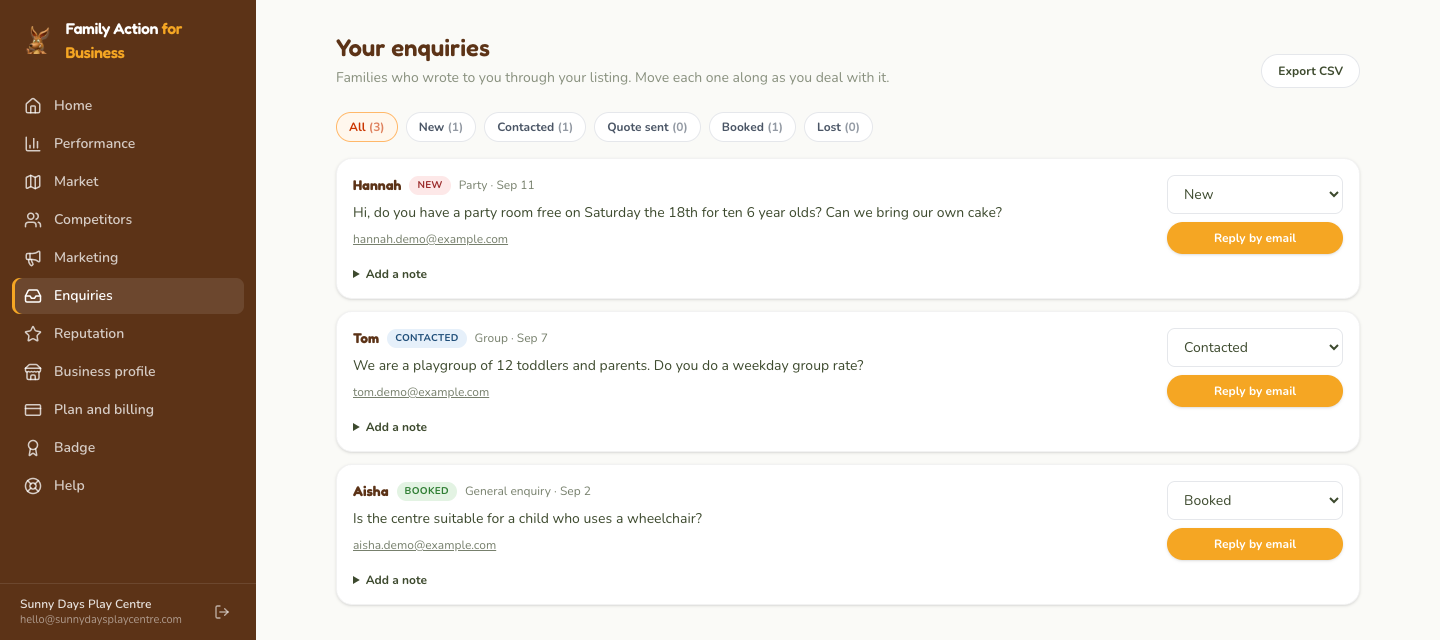
Enquiries
Families can write to you from your listing. We email you each one, and
the Reply button in that email opens the conversation here, signed in.
You see the family's message, can view their phone number if they gave
one, reply, and attach a price list or brochure. Your email address is
not shown to the family, and theirs is not shown to you. Every enquiry
has a stage you set (new, contacted, quote sent, booked, lost), a note
field, and an export to a spreadsheet.
Enquiries: open one to reply, set the stage, add a note for yourself.
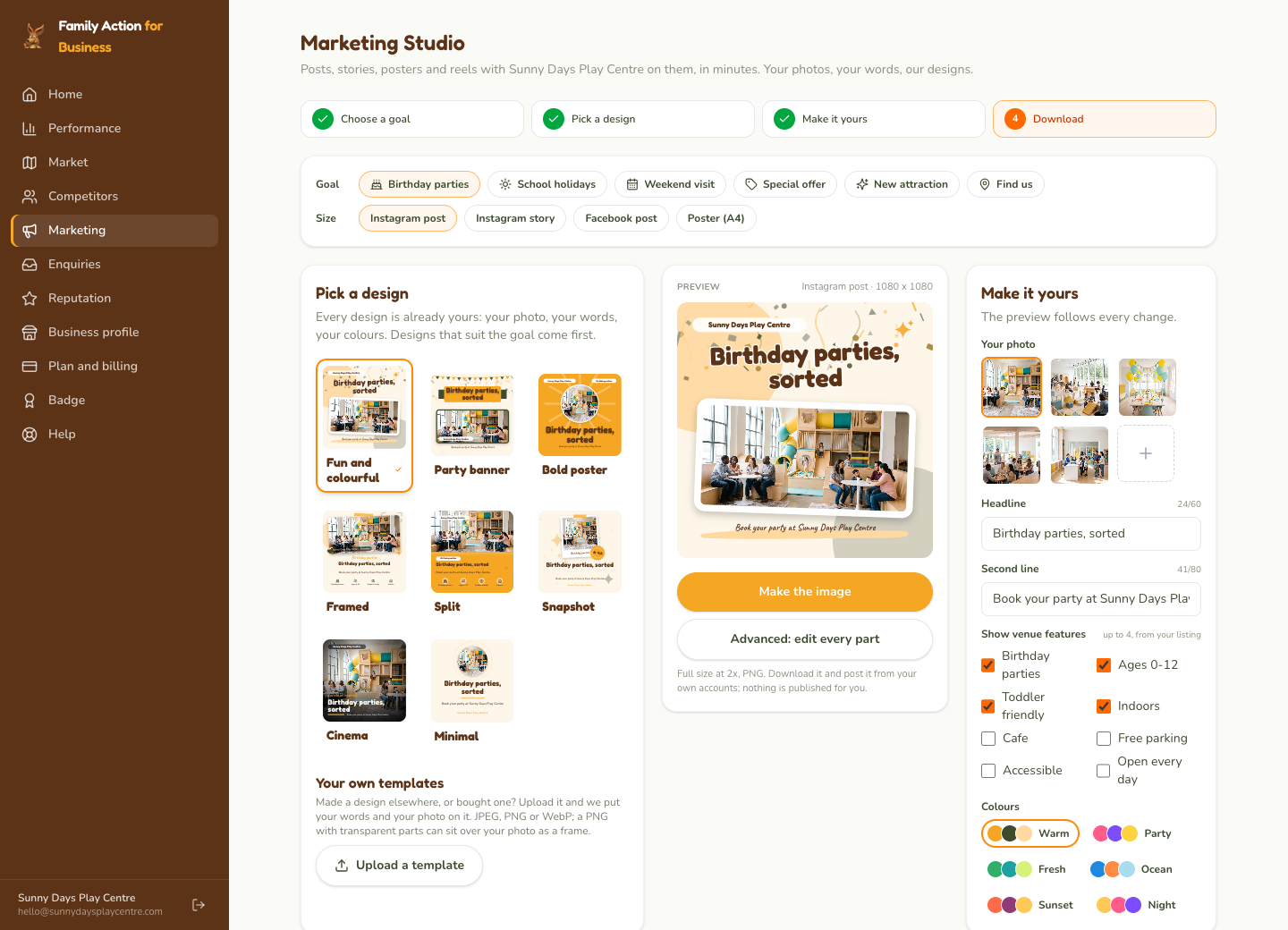
Marketing Studio
Posts, stories and posters with your venue on them. Pick a goal (birthday
parties, school holidays, a weekend visit, an offer, something new, find
us), a size (Instagram post or story, Facebook post, A4 poster) and a
design; every design is drawn with your photo, your words, your colors
and your venue's features. Edit the headline and second line, choose a
color palette, tick which features to show, then Make the
image and download it. Nothing is posted for you; you post it from
your own accounts.
Marketing Studio: pick a design on the left, edit the words and colors on the right, make the image in the middle.
Your own templates. Made a design elsewhere, or bought one? Upload it and the studio puts your words and your photo on it.
Advanced editor. Every part of a design can be moved, restyled or replaced.
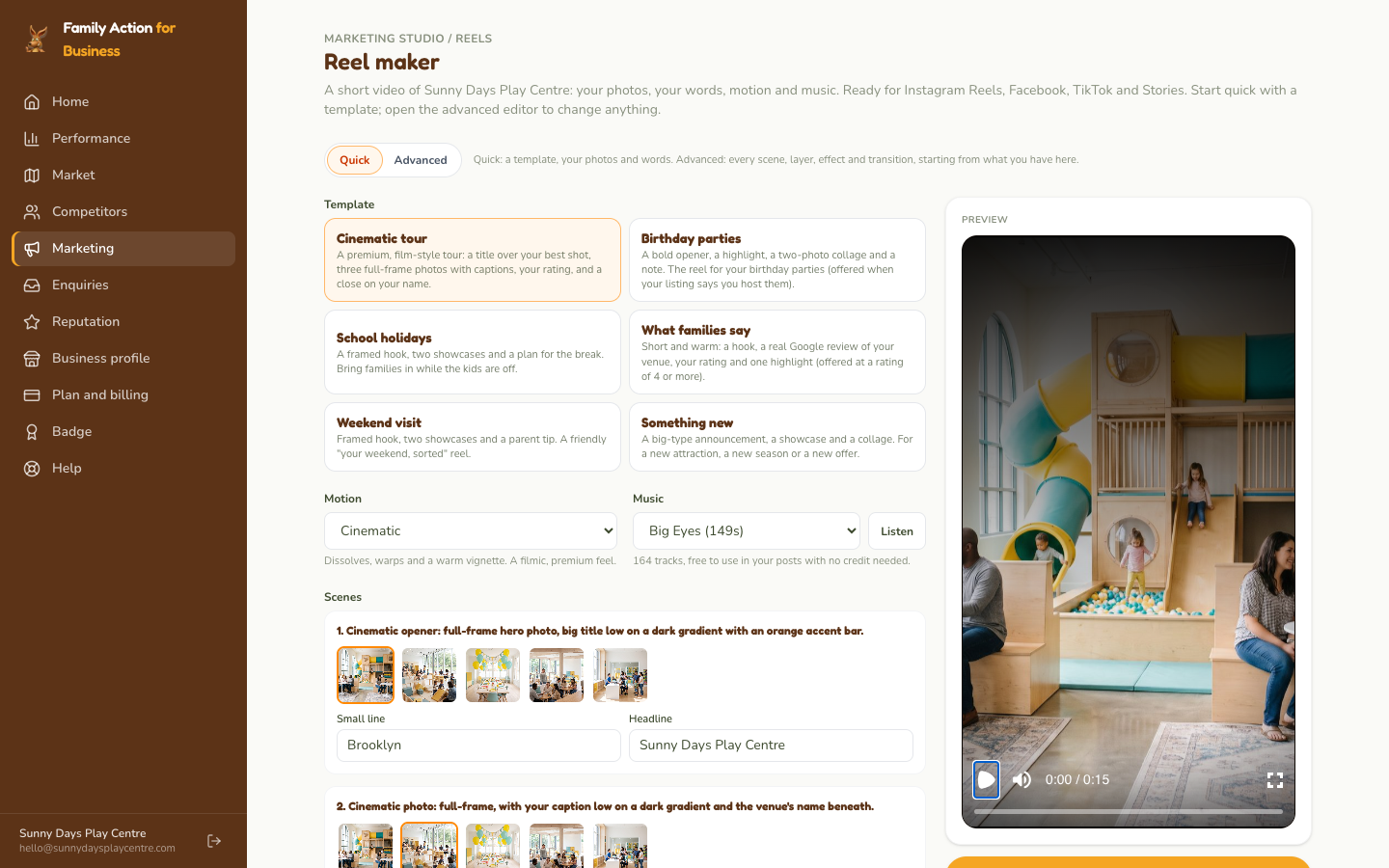
Reel maker: a 15-second video from your photos with movement, transitions and music, made for you to download.
Your own photos only. The studio uses photos you have uploaded, not photos we found on Google, because we cannot verify that your venue has permission to reuse those. Only upload photos you own or have permission to use.
Reel maker: choose a template, pick a photo for each scene, add music, then make the reel.
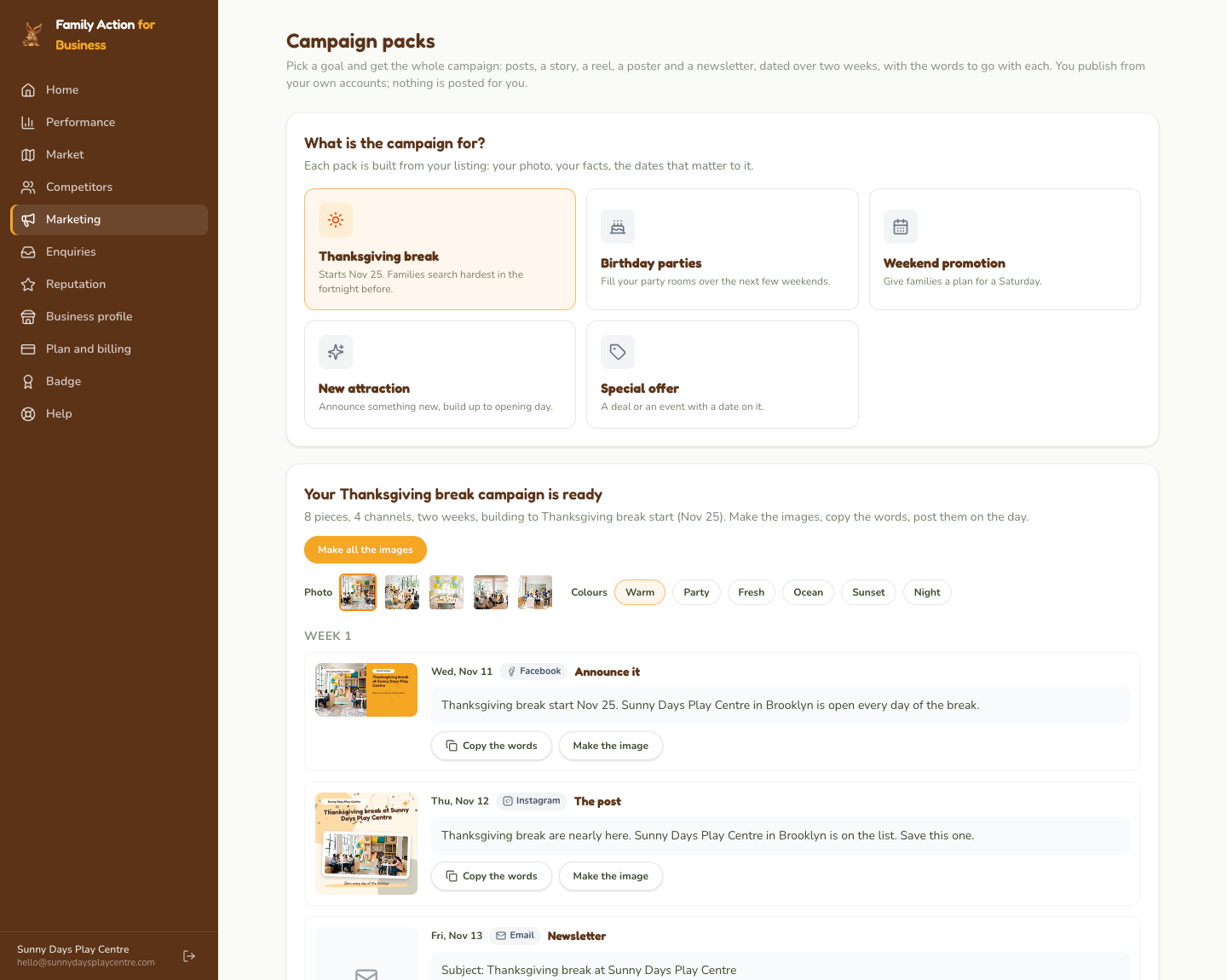
Campaign packs
A whole campaign for one goal, not one image at a time. Pick the next
school holidays, birthday parties, a weekend promotion, a new attraction
or a special offer, and you get a two-week schedule: a Facebook post, an
Instagram post and story, a reel, a reminder for the second week, an A4
poster for the door and a newsletter, each with its date and the words to
go with it, all written from your listing. Make the images, copy the
words, post them on the day. As with everything here, you publish from
your own accounts; Family Action never has access to them.
Campaign packs: pick the goal, then work down the schedule; each piece has its words to copy and its image to make.
Market, Competitors and Reputation
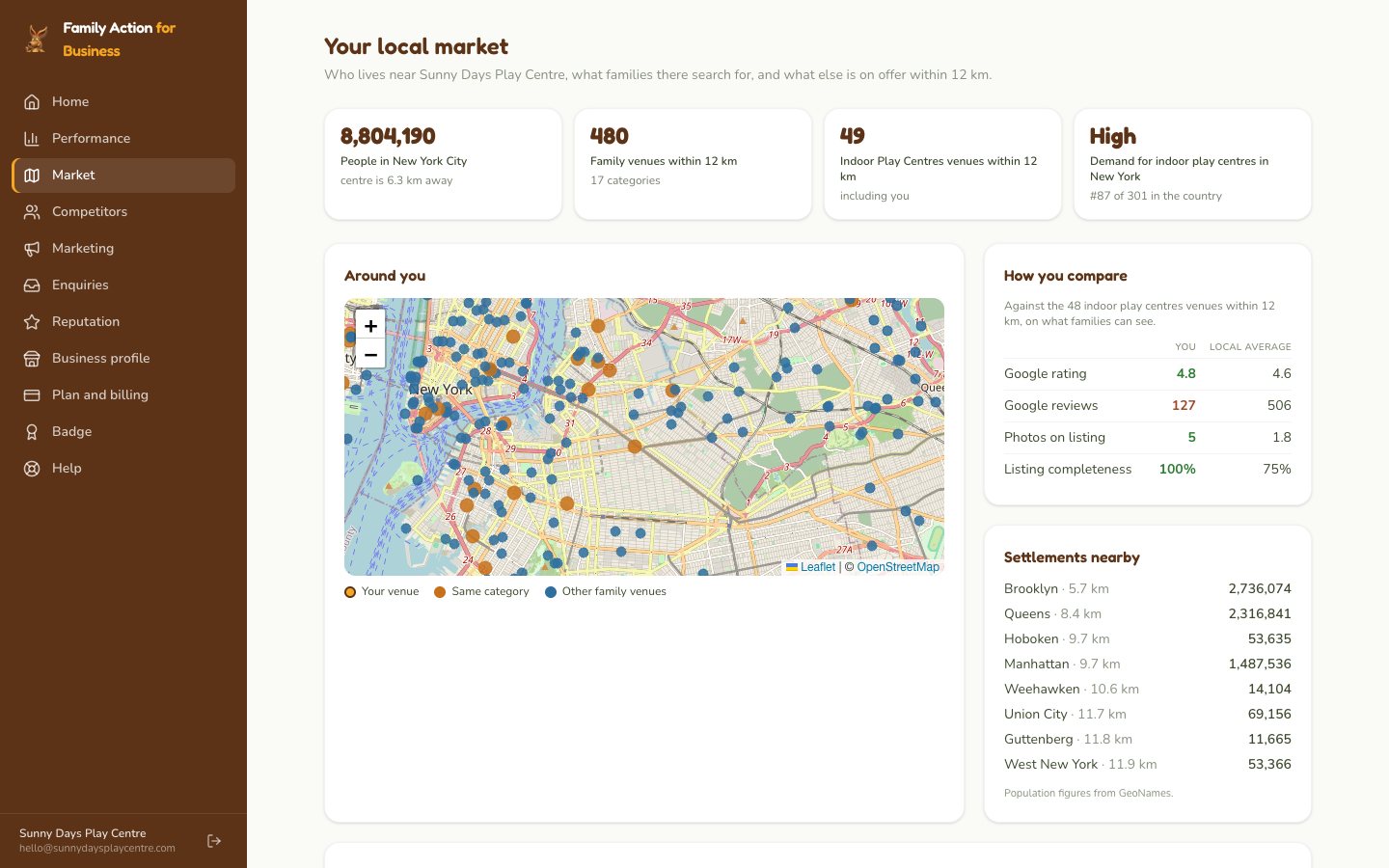
Market shows who lives near you: your city and the
settlements around it with their population, everything we list within
7.5 miles on a map, and how often families in your region search for your
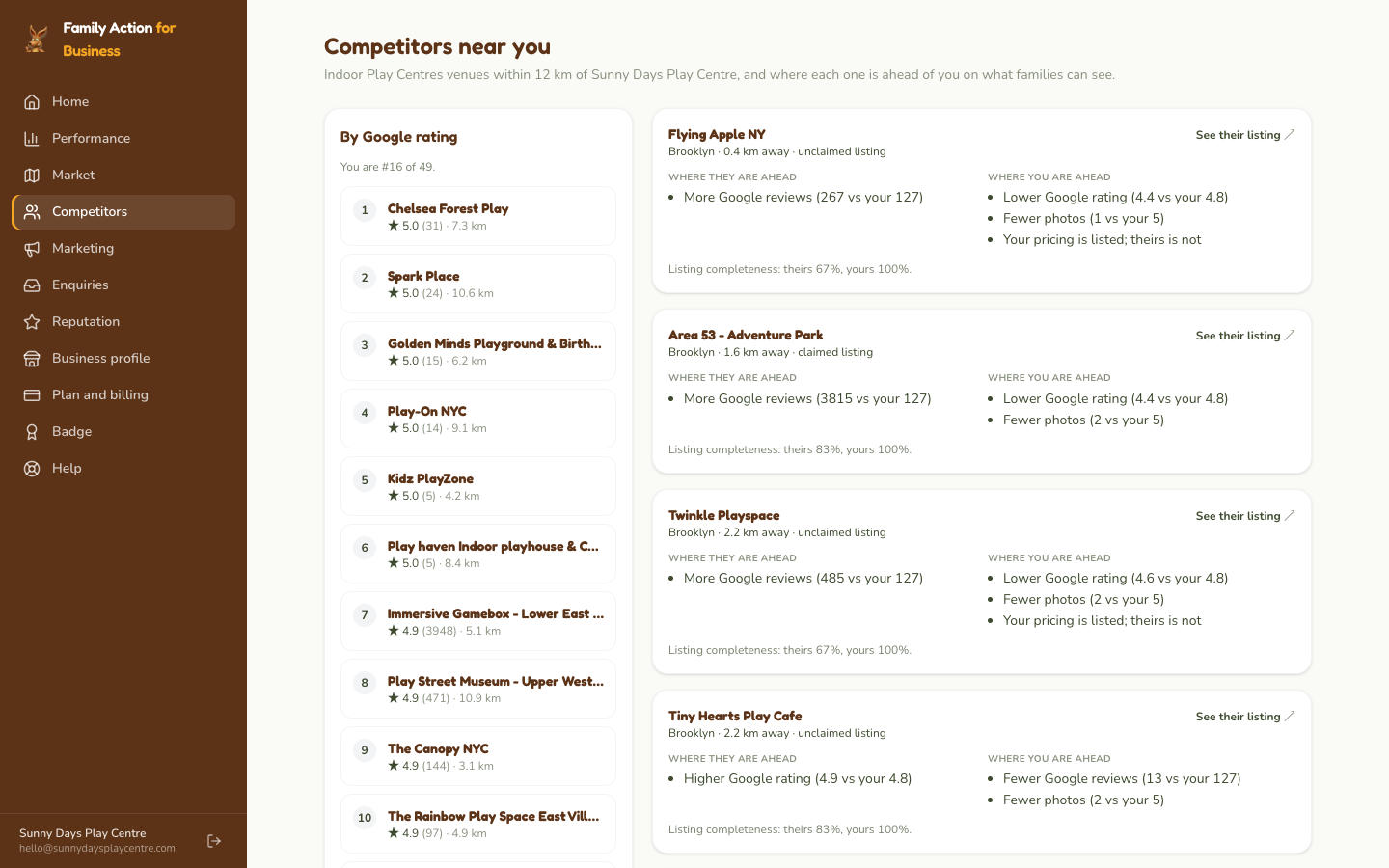
kind of venue. Competitors lists the same kind of venue
within 7.5 miles by Google rating, with where each is ahead of you and where
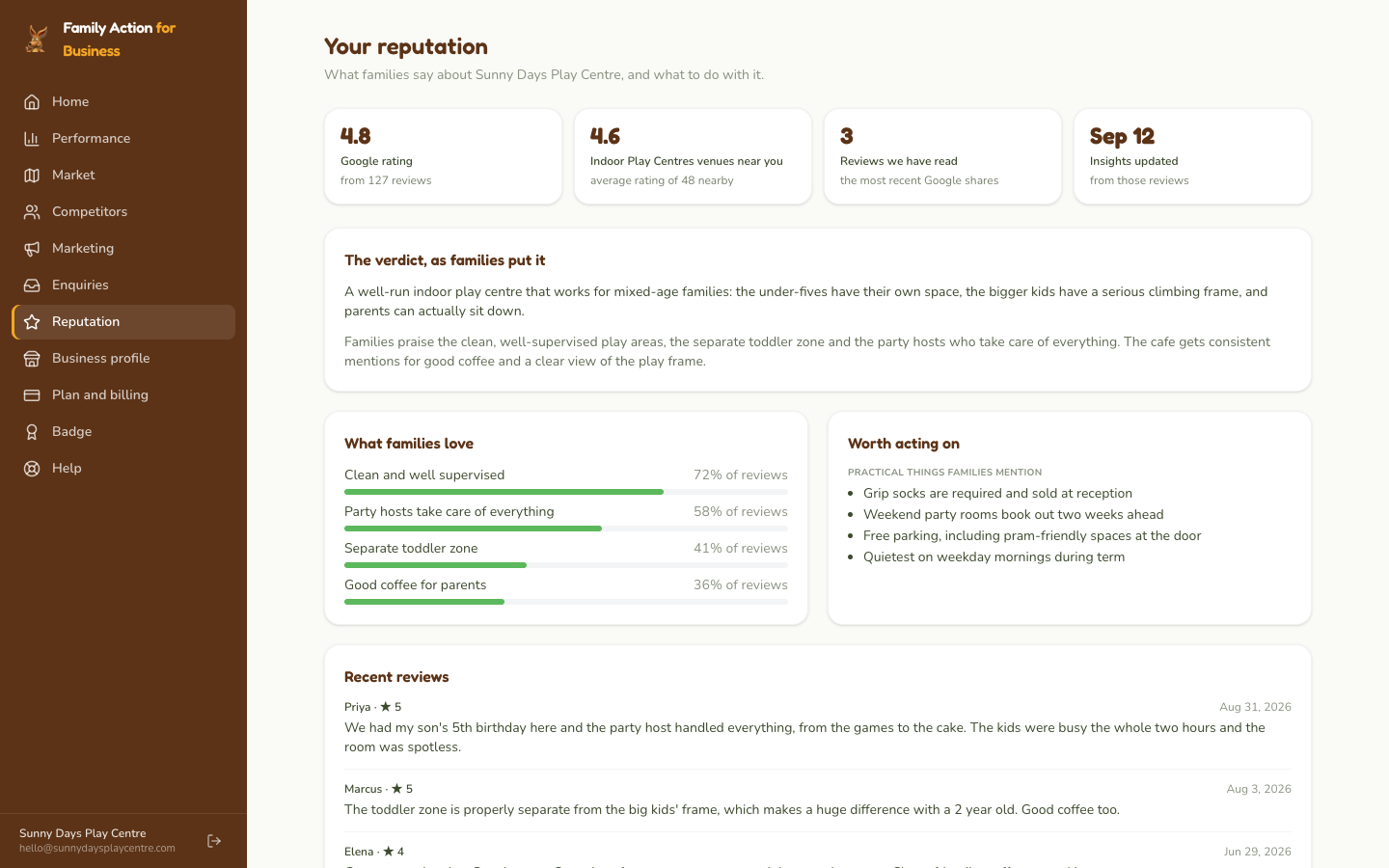
you are ahead. Reputation puts your Google rating, the
themes in what families write about you, and the recent reviews Google
shares in one place. (Performance's "where you stand" compares by suburb; these two compare by distance, so the two lists can differ.)
On Market you can also ask us to email you when your local market
changes: new venues nearby, rating changes and demand, at most once a
month and at least every three months.
Market: people nearby, venues within 7.5 miles on the map, and how you compare on rating, reviews and photos.Competitors: the same kind of venue within 7.5 miles, and where each is ahead.Reputation: your rating, the themes families mention, and recent reviews.
Badge, Help
Badge gives you the "Featured on Family Action" code for
your website. Help is where to reach us. If you manage
more than one venue, choose the venue at the top of each screen.
5. What it costs: nothing
Every tool in Family Action for Business is free for every venue: your
listing and every tab of it, booking links, Performance, Enquiries, Market,
Competitors, Reputation, the Marketing Studio, the reel maker and the
campaign packs. There's no charge: no plan to choose and no card to enter.
The one thing we charge for is optional: promotion to Family
Action's own audience, such as placement ahead of other venues in
your category or on your city's page. If you would like Family Action to
promote your venue, email hello@familyaction.com
and we will talk it through; nothing in the portal asks you to pay.
6. My venue is not listed yet
If you have searched carefully and your venue is not on the site, submit it:
Fill in the form (name, address, category, contact, website)
We review it and add it to the directory, usually within one to two business days
Once it is live, claim its listing (section 2)
Submitting does not give you ownership. Submitting lets us
know the venue exists; claiming the listing, once it is live, is what
gives you access.
7. Questions
I cannot sign in.
Choose your country first (it is where your account lives), then your
email, and press Email me a sign-in code. We email a six-digit
code that works for ten minutes; type it in and you are signed in.
There is no password. If the code does not arrive within a minute,
check your Junk or Spam folder: it comes from hello@familyaction.com.
Mark it Not junk so the next one reaches your inbox, or reply
to any email from us and we will send you a link.
Will I be emailed when a family sends an enquiry?
Yes. Each enquiry is emailed to you, and its Reply button opens the
conversation in Family Action for Business, signed in, so you can answer
straight away. Your reply reaches the family by email; neither of you
sees the other's email address.
I saved a change but the listing still shows the old information.
Your listing updates within a minute or two of saving. If it does not,
reload the page, and if it still shows the old information after ten
minutes, email us with the venue name and what you changed.
Why are the photos on my listing not in the Marketing Studio?
Photos we found on Google are shown on your listing but we cannot
verify that your venue has permission to reuse them, so the studio and
the reel maker only use photos you upload yourself. Upload your own
on Home under Photos, and they appear in every design. Only
upload photos you own or have permission to use.
Do you take bookings?
No. Your booking links send families through our site to your own
booking page, so we can record the click, and nothing else happens in
between. Payments, availability and confirmations are all yours.
Can I manage more than one venue from one account?
Yes. Claim each venue with the same email address. They all appear in
the one account; choose the venue at the top of each screen. Contact
us if you would like us to link a chain or franchise in one go.
Can a colleague have their own sign-in?
Not yet; one account per venue, and the account email is the one that
claimed it. Contact us if the person who claimed it has left and the
account needs to move to someone else.
Is there really no cost?
Really. There's no charge for any tool, for any venue. If you ask us to promote your
venue to our audience, that is a separate, optional arrangement we
agree with you by email first.
My venue uses a Gmail address, not one on our website.
Ask anyway. We look at the details you give and anything public that
ties you to the venue, and approve on judgement; we may email or call.
If we cannot confirm ownership we decline, and you can ask again with
an address on the venue's website or reply with evidence.
I see incorrect information on my listing right now.
The fastest path is to claim your listing and edit it yourself. For an
urgent correction before your request is processed (a wrong phone number,
say), email hello@familyaction.com with the venue
name and the correction and we fix it for you within one business day.
Will my listing be removed if I do not claim it?
No. Listings stay live as long as the venue is operating. Claiming
gives you control of the content; we are happy to list your venue
either way.
I submitted my venue but I cannot edit it. Why?
Submitting and claiming are different. Submitting tells us the venue
exists; claiming tells us you run it and gives you access. Once your
submitted venue is live, open its page on familyaction.com and click
Claim this listing.
8. Contact us
If anything here is unclear or you are stuck, email
hello@familyaction.com. Include your venue name and
the address of your listing on familyaction.com if you can; it
makes it much faster for us to help.